Saturday, June 14, 2014

Pictures from the Maryland Sheep and Wool Festival, 2014 (3)

So here we are again .......... in the Barn of the colours and yarn ... !

And so we got to Susan's Fiber Shop
And this rather amazing piece, with the knitting in the middle and all the tassels, was on show at the Fiber Shop
Made by the lovely Esther, shown here in front of her work.


That's it for here ... I have lots more photos, but only a limited amount of time to do layout!
Blogger NEEDS a decent layout program!
TTFN

Friday, June 13, 2014

Throwback Thursday - with a Vengeance!

This post I'm going to be entirely self-indulgent. It's all about family. My family.
Left is my grandfather, Roy. He is dressed in the uniform of a lieutenant of the Royal Corps of Transport, about 1914. He was soon to fight in the Great War, emerging alive but wounded.
Right is my grandmother, Amy. Taken in 1921, the little girl is my mother, Kathleen.
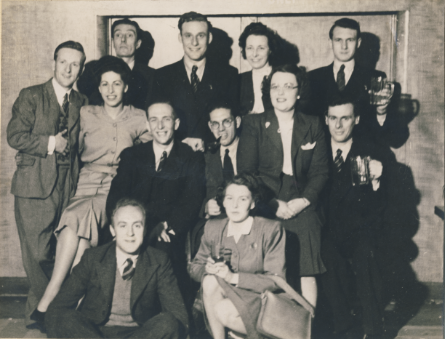
After service in World War II in the W.R.A.F., my mother can be seen here indulging in a demob party with her friends in the Royal Air Force.
One of those friends, Doug, is seen here with his wife, Binnie, and my father, Joseph.This would have been in the early 1950s.
Here is a photo of the Blogger at the same age that his son now is!
And here's his dog (unfortunately the negative here has aged badly, colour-wise).

That's it!

TTFN

Monday, May 12, 2014

Pictures from the Maryland Sheep and Wool Festival, 2014

Here are some more pictures from the Maryland Sheep and Wool Festival, 2014.


Itsi-bitsi teensy-weensy little lambs!
The old and the new - at the time we went past there was just this cart under a tent - nothing more! 
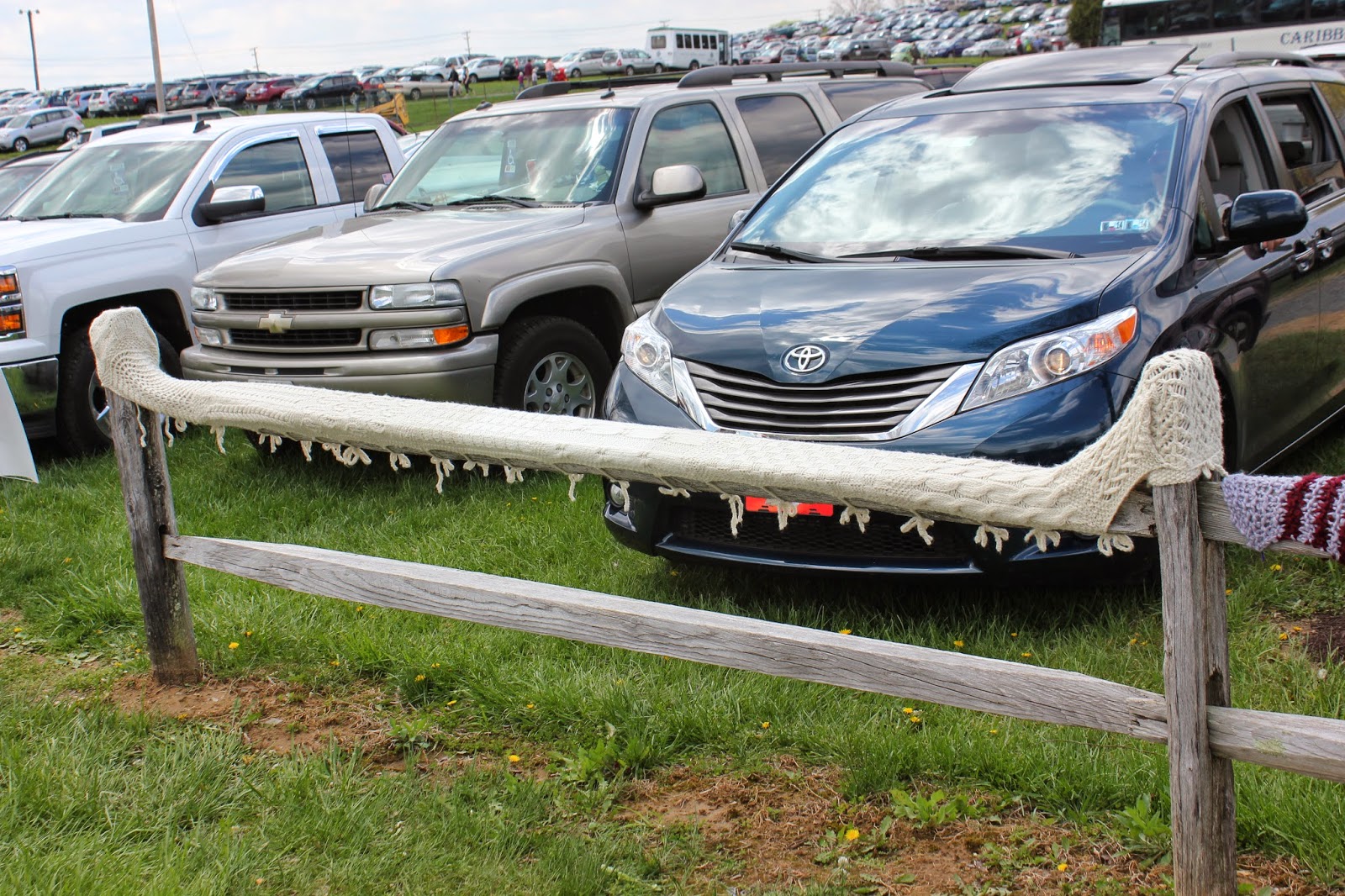
Some more yarn-bombing of the entrance-way fencing
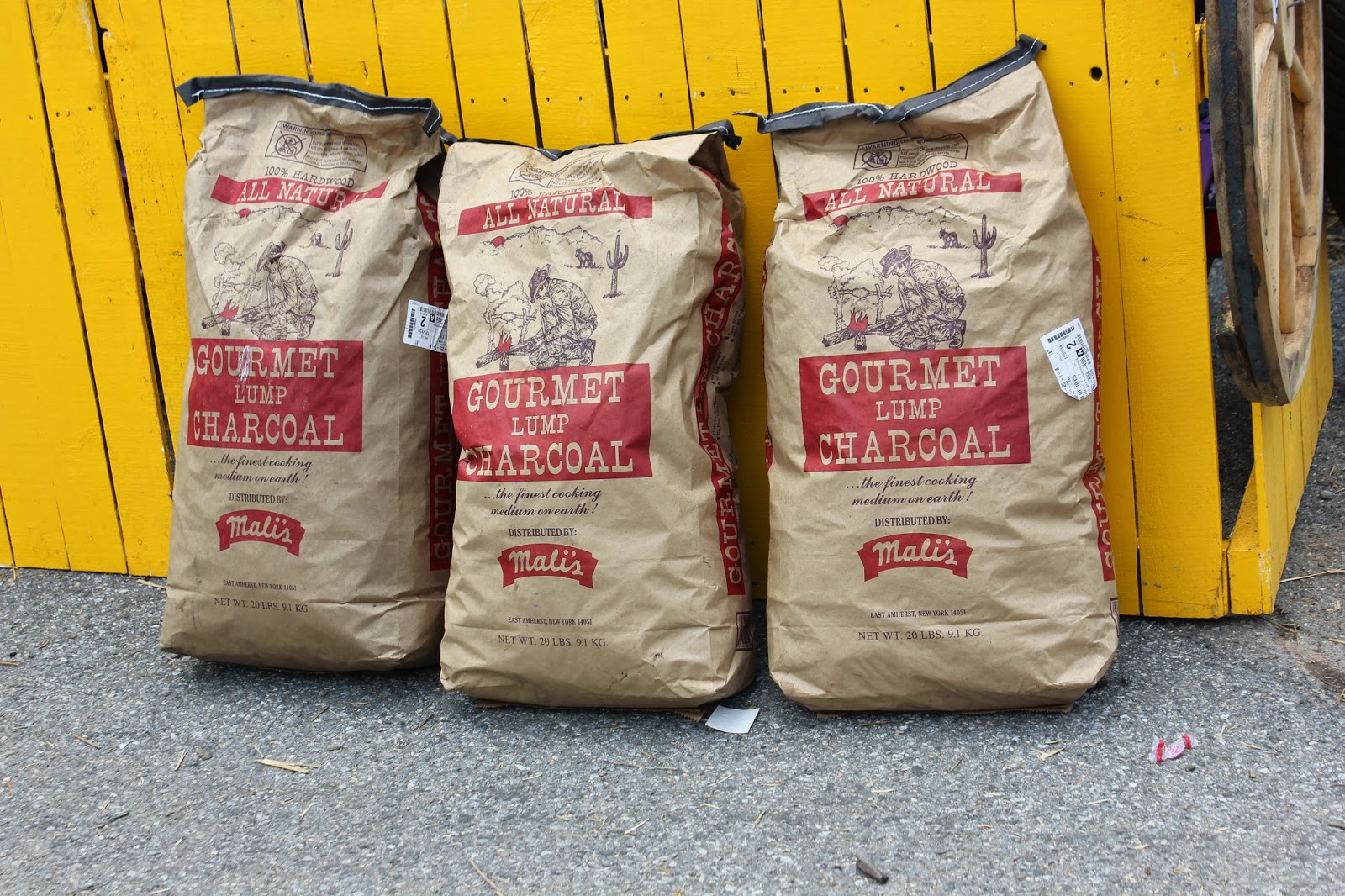
I've seen "Gourmet Lump Crab" before, but "Gourmet Lump Charcoal" ???
Finally making it to the main exhibition barns.


And this is all Blogger will let me put on a page! After this it appears that its translation program for HTML gives up and does silly things.
More to come! .................. (I hope!)
TTFN

Sunday, May 04, 2014

Maryland Sheep and Wool 2014 (2)

Today we were back at the Fest, as we are pretty much every year.
So today we went with a friend, Anna, who was a complete newbie to the fair. We left Delran at about 5 am and got to the fairgrounds at about ten past seven, in good time to get an excellent parking spot.
Walking up the path to the entrance we realised that someone had already put in an amazing amount of work this year! The whole walk was yarn-bombed!! The two pictures above show each side, and there's a few close-ups later on.

Instead of making a bee-line straight to the main (and furthest) barn for the Clover Hill stall, this year we headed straight ahead and worked the area at the top of the hill. After lending a (very little) hand helping set up an auction, the girls polished off Sheep Incognito (brilliant, as always, and the subject of attention from the local PBS station) and I hit Tess Yarns to remind my camera just what colour is!


More in an hour or so!
TTFN

Friday, May 02, 2014

Doing the Right Thing


I'm sure that you've all heard of the flaw discovered a week or so ago in Microsoft's Internet Explorer, the browser that comes included with Windows. This exposed all users of the program, back as far as version five that was distributed with Windows 2000, to active attacks that attempt to exploit the security flaw to introduce new and hostile software onto your computer in order to take it over and use it for other purposes.

It was announced today that Microsoft is fixing the problem and releasing a patch for the program. The patches to fix the problem will work on Windows 8, 7, Vista, and XP, despite XP no longer being supported.

The patch should be automatically available on your Windows computer with the links to Windows Update and Microsoft Update.

Microsoft have no interest in seeing you stay on Windows XP - they're making no money from you! OTOH, they're doing the Right Thing by fixing this problem. In part this is because such a large part of their customer base remains on Windows XP - almost 30% at the time of writing - that something that causes a huge problem for these people will also adversely impact the rest of their customers. In part, also, it would look very bad if they just abandoned that 30% to their fate, and bad publicity is always just that!

So, for whatever the reason, if you're running Windows and using Internet Explorer, 

GET THE PATCH!!!


TTFN

Monday, April 14, 2014

Installing Programs in Linux

Yep! All Tech this time. Well, almost all Tech. Maybe some Cats and Food later!

Ont of the worrying things about starting using a new OS is how to add programs. In Linux this ends up as being both transparent and easy. The transparent part can be a little frightening at first, but the easy part should get your confidence up!

Installing Programs in Linux  --  Firebird

As you probably know, while I use Windows at work, I use Linux almost exclusively at home. So, to encourage all you users of Windows XP out there who might be wondering about what to move to not that Microsoft has finally given up on supporting you, I've decided to write a few Help articles to show how easy some things can be in Linux.

This little article is an introduction on how one goes about adding programs to a Linux system. You'd think that big programs would be more difficult than small ones, but really the following is the same for almost any program in Linux. The programmers add the program (including a list of everything it needs in order to work) to a Package Repository, and the Package Manager on your computer goes there to find the software you're asking for, download it, and install it. In this example I'm going to install FireBird, a database server, so not a particularly trivial piece of software!

Once upon a time there was a little company in Groton, CT (yes! - where they build the submarines) that created a database engine (the program that handles the data) called InterBase. There's a good article on Wikipedia here that explains the history and gives a good explanation of the way InterBase handles Concurrency (when two users want to change the same piece of data at the same time).
In the 1980s they sold out to Ashton-Tate (of dBase fame) who were bought by Borland in 1991, really for just one reason - InterBase. Borland already had Paradox, a desktop database that was superior to both dBase and Access. Since then InterBase has been both open-sourced and developed (by Embarcadero), and the open-source version is called FireBird. Interbase runs on Solaris systems as well as Windows, is a really nice database with an amazingly small footprint (it'll run from 500 KB on disk! When was the last time you saw anything measured in kilobytes??!).

So let's get to it!

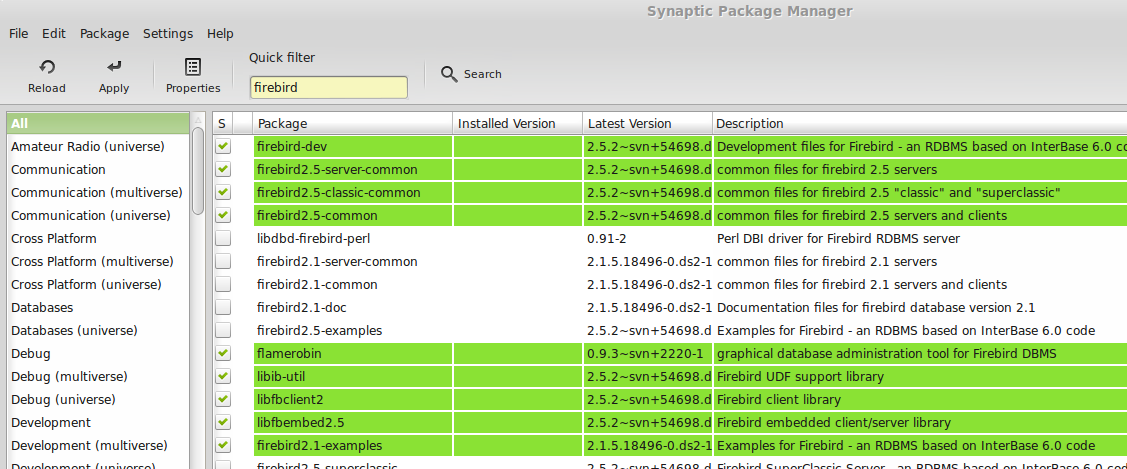
Here I am running Synaptic Package Manager to install the database.

What happens is that I click on the check-box beside the name of the program I want to install. For each selection I have to confirm my choice and the program checks it off, along with any other pieces that it needs but that I don't yet have. At the end I can click on the Apply button at the top of the program window and all will be installed.

At the end of it all I even get a nice reassuring status message:

That's nice, of course, but where's the program? Well, the first item in the second block of green in the first screen-grab is FlameRobin, which is the GUI interface for FireBird, so I can go to the menu system and look for it.I'm using Linux Mint, so the menu system looks like this and if I select Programming from the list of categories I see FlameRobin here. I can click on it to start it.


After starting FlameRobin, telling it where to find the database that FireBird is managing, and giving it all the right names and passwords, here I am!


So, you can see that installing even quite a complicated program into a Linux computer is not that frightening after all. The neat thing about a Linux program is that you get it from a package manager. Your system tells the package manager what release you're running, and the package manager tells your system what other pieces of software it'll need to have in order to run the piece you are asking for.

There are, of course, times when you just can't run a piece of software, usually because your OS version is too old. In that case you are told as much, and you update. Updating is, surprisingly, more like installing a Windows service pack than moving from Windows XP to Vista, for example!

So, let's imagine that you're leaving Windows XP for the wilds of Linux. First, go down to your local Barnes & Noble and get a Linux magazine with a  DVD in it / on it. On that DVD will be a number of "Distributions" of Linux - the basic beast with various bundles of goodies to make it easier to use. Alternatively, go to one of the sites I mention below, download a "live" disc image ("live" means one that you can boot and run, not just install from) of the product.

Put that in your DVD drive and boot your machine: you should be able to select to boot from the DVD (if not there'll be a setting in your PC's BIOS to let you) and you'll get a menu offering you a list of the various distributions on the DVD. Select one and your computer will boot into that distribution - it may be Ubuntu, or Mint, or even Zorin (which can be made into a very XP-looking system indeed). The system will be somewhat slow, as you can imagine, as it'll be reading from the DVD every time it wants to do anything, but you'll be able to see two important things:

  • Does it work with your hardware? Does it work with your wi-fi, with your printer and scanner, and other things you may have attached.
  • Do you like the way it looks?
  • Now you can add the programs that will do what you want to get done, leaving Windows behind!
TTFN

Monday, April 07, 2014

Virtual Windows

Yep! Another All-Tech this time.

The subject of this blog is taking Windows XP virtual. The idea is to stop using Windows XP, for reasons that I explained in my "XP is an Orphan - What Next" post. However, some of us can't just stop  using Windows XP. The system has been out there for 12+ years, and there's good software made for it that, because the publishers went out of business or were bought up, just isn't going to get upgraded to work with Windows 7. There's lots of software that small businesses use that would cost the proverbial arm-and-a-leg to replace in Windows 7, and there's also lots of hardware that isn't getting driver software written for it for new operating systems. Now I'll not say that any system is perfect in this regard - Linux in particular has problems with Canon gear, as Canon have historically been reluctant to offer Linux drivers. There are ways around this, but they're geeky and complicated.

So one more possible drawback to moving to any new operating system is that you lose the use of some vital parts of your hardware, and that it'll then cost you a fortune to upgrade that too! Therefore, if you need use of some specific piece of hardware, ensure first that the new operating system - be it Linux, Windows, or Apple - can happily talk to your hardware.

Theory
What this means is to use a program that runs on your operating system of choice and which pretends to be the hardware of a computer!

Looking at the diagram above, the main box is what your current operating system sees as its "world". The green bit is the free space it has to put programs in - there's one in there already, called "Program" (sorry! - imagination is running short today!) and, within this Host OS, there are some extra bits, called "Driver Software".
There's one bit for your monitor, one for your printer, one for your wi-fi, and even some for things like keyboards, mice, and hard drives. Some come in the BIOS, so you can start your machine, and some are added later when you buy new things, like printers, scanners, and wi-fi.

So you can see that the operating system that all your programs talk to in order to get to do things like print, or show things on the screen, or accept keystrokes from the keyboard doesn't really talk directly to these pieces of hardware either! It talks to very specialised little bits of software that, in turn, talk to the hardware.

Because of this, one can write a program that pretends to be a computer, and load it up with an operating system (called the Guest OS). So long as the program can accept instructions to do things with all the hardware that an operating system expects to talk to and give back the right answers then the operating system won't know any better!

Practice
There are two parts to the practice - one is to get your Guest System and the other is to get it to run inside your Virtual Machine program that you run on your Host system.

Getting your VM
You can use the VirtualMachine program to create a Virtual Disc for you (essentially just a large file), or you can get a pre-built one.
If you build your own (a matter of a few mouse-clicks actually - nothing difficult!) then you'll need to bring your own operating system (Windows, MacOS, or Linux) to run in it, as all you'll have is what you get when you buy a ne hard drive and pop it into your PC - a PC that's willing to boot but doesn't have anything to boot from!
Alternatively you can go pre-built. You can download pre-built discs from a variety of sites, including here and also at Oracle's Developer Network site. If you're coming from a Windows environment you can download a Microsoft program called disk2vhd, available free from several places, including Microsoft! You can use this program to create a copy of your Windows system disk (or any other disk, for that matter) that can be booted from by your Virtual Machine.

Installing your VM
This is a pretty easy task - you just have to attach the disk image and go!

I'm going to show you here using Oracle's Virtual Box running on Linux. Virtual Box works pretty much the same on all three major platforms, so using it means that you have minimal trouble if you move from Linux to, say, Apple as your Host system.
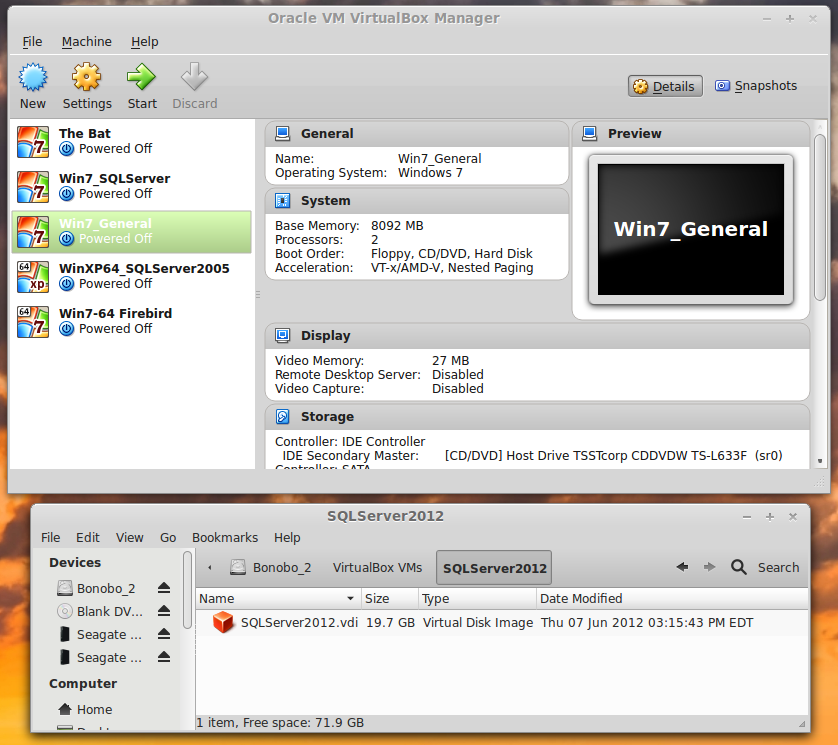
Here's what I have to start with (right) - you'll see at the bottom a Nautilus (a File Manager) window open on the folder holding the disk image I want to mount as my C: drive in my new Virtual Machine (VM for short). It's called SQLServer 2012.vdi, as it's hosting a copy of SQL Server 2012!
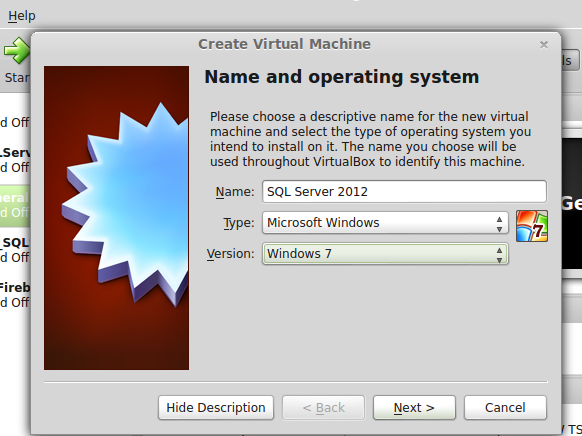
First, I have to create a new machine (Machine | New from the menu) - see left - and then walk through the chain of prompting dialogs, answering a series of simple questions.
This one asks me for a name for the machine and the operating system I'm going to run inside it.


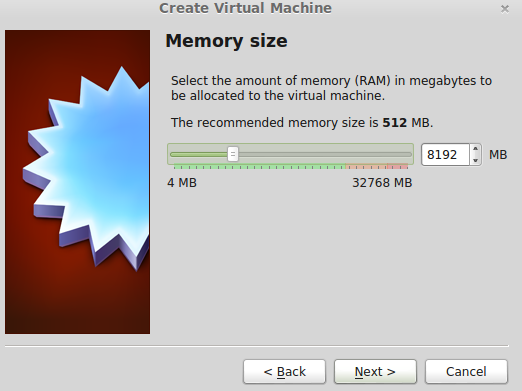
Next I have to tell VirtualBox how much RAM I'm going to give the VM for its RAM. To do this I can type in the amount (being a geek I know all the appropriate powers of two, but if you don't then just slide the bar slider. You can't go too far - see the brown area at the right to show where my physical memory tops out! I'm giving this machine 8 GB of RAM to play in.
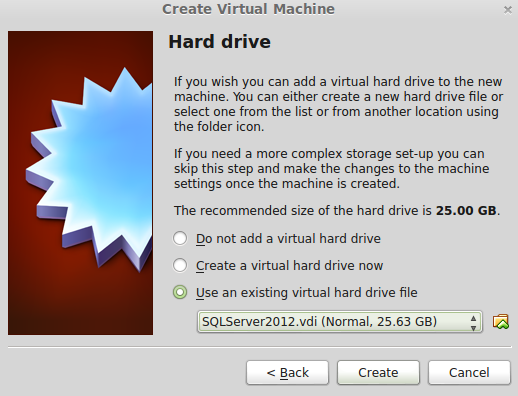


Step three is to add your hard drive. In my case I already have one made, so I selected the third option and found my file. If you don't already have a disk file ready to go you can select the second option and create one, here-and-now.
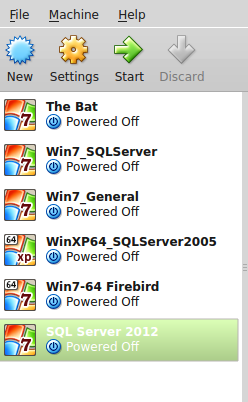


On the left you can see the list of machines that I can launch after I added my new SQL Server 2012 machine, which has an entry at the bottom, highlit in green.
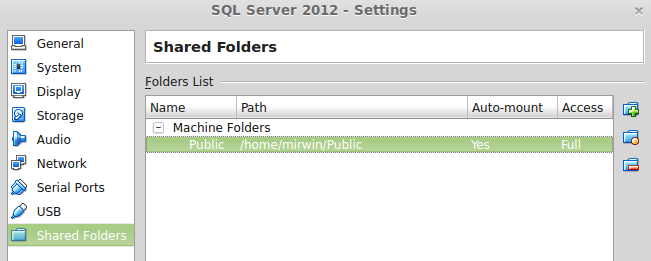

Before I start I need to make one major addition - connect the Operating System inside the VM to the Host machine. I can do this by sharing a piece of my Host's hard drive, in this case a folder called Public. It will appear inside a Windows machine as a mapped drive.
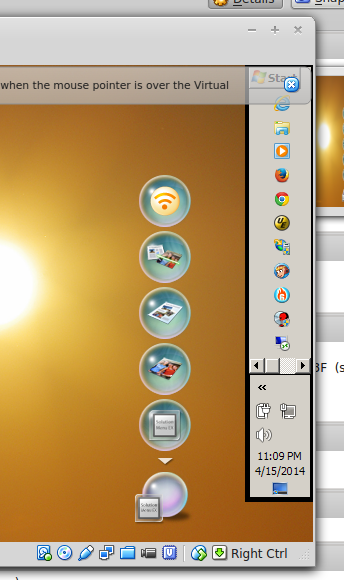
Fairly soon you'll be able to log in to Windows. As you can see on the right the Windows running inside the VM looks totally normal (yes, I keep my task bar up the right-hand side of the screen!).

If you look closely at the bottom-right of the screen-shot to the right you'll see some icons on the status bar. Here they are, enlarged (below).



These tell you what's going on in your machine - the fourth along, for example shows network activity (i.e. internet traffic). The legend "Right Ctrl" indicates that your Guest and Host machines are sharing the mouse: if it gets caught by the Guest machine then the right control key will release it back to the Host machine


to be extended very soon!


Found Food

I have published quite a few recipes here on my blog over the last few years, and I hope that all my readers have tried at least some of the...