Thursday, January 01, 2015

Linux - Installing a Program By Hand

In Windows you download an executable (.exe) or a .msi installer program, double-click it, and sit back and hope. It used to be that Windows' use of .dll files promised a major problem if your new program wrote a new version over a file of the same name that did something else! All of a sudden installing the new anti-virus program killed the accounting program stone-dead! This was known as "DLL Hell" and there's a good Wikipedia article here about it and how it was "cured", if you're interested!

Of course, Windows itself changes from time to time, as service packs and patches are installed, but Microsoft, being just one company, can make sure that if it replaces version 12 with version 13 then they appear to be identical to the program trying to use them.

Linux operates slightly differently. When I write a program I do it in an environment of different programs that it needs, just like I do in Windows. For example, I might require at least Windows 2000 so that I can use an infra-red device (Windows NT didn't support that). Similarly, in Linux, I might require a certain version of some particular other program in order to support my program's functionality. In order to do this I package my program up with all the pieces with which I can supply it, and then add a dependency list of what versions of what other pieces of software my program will need. For example, there's a nice customisable little utility called Docky, which offers a variety of differing launch bars - Windows style, Apple style, etc. - and my little application might need to live with at least a certain version of Docky.

Once I've made sure that I have listed all the required Dependencies that my program has, I can load it up into a Repository and let people have at it!

When you want to install my program you would normally (for Mint) get it from Synaptic Package Manager, as you can see here. You just click on the item you want and ask to mark it for installation, and the Package Manager reads the package, sees what you don't have installed from the list of Dependencies, and tags them for installation too. Once you're done you tell Synaptic to install everything for you and you let it happen.

So simple! But what if what you want isn't on offer? Then you have to do it yourself. Here's an example.
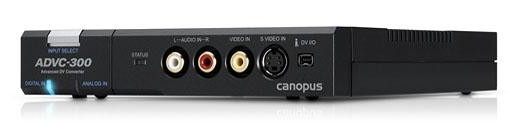

I have a rather nifty little box (a Canopus ADVC-300 - you used to be able to get them from B&H, but maybe now second-hand) that takes in analogue audio/video (like from a videocam) and spits out a digitised version on an IEEE Firewire cable. Happily my PC has a Firewire socket.

To the right you can see the front (over) and back (under). You plug your RCA jacks into the front and your Firewire cable into the far-left socket on the back. Ever so neat and it gives you 1080p - quality pictures!

Anyhow, the best program for pulling in the feed from this is one called dvgrab (Digital Video Grabber). You run it from the command prompt and it just does its thing until you turn it off. For demonstration purposes this is how you go about it:

Open a command prompt and go to the folder in which you want the incoming files to appear. I start in my own folder ("mirwin") here, so I have to go up one (cd ..  just like in DOS!) to "home" and up one again to the root before I can go down to "media", down to B2 (the name of the hard drive I want to put the video on) and down again to the "canopus" folder. I'm sure that there are easier ways of going directly to it, but I remember the tree structure and find my way more easily like this!

mirwin@Bonobo ~ $ cd ..
mirwin@Bonobo /home $ cd ..
mirwin@Bonobo / $ cd media
mirwin@Bonobo /media $ cd mirwin
mirwin@Bonobo /media/mirwin $ cd B2
mirwin@Bonobo /media/mirwin/B2 $ cd canopus
mirwin@Bonobo /media/mirwin/B2/canopus $ ls

The last command above is "ls", standing for "list" (although there is no "list" command!), and I got nothing back because the folder is empty.

So next to run dvgrab, in the (mistaken) belief that it's installed:

mirwin@Bonobo /media/mirwin/B2/canopus $ dvgrab
The program 'dvgrab' is currently not installed. You can install it by typing:
sudo apt-get install dvgrab

So not only does it nicely tell me that I can't run it, but also why not (not installed) and even what to do to go and get it! How friendly!
OK, so I'll type in that weird line and see what happens:

mirwin@Bonobo /media/mirwin/B2/canopus $ sudo apt-get install dvgrab
[sudo] password for mirwin: 
Reading package lists... Done
Building dependency tree       
Reading state information... Done
The following NEW packages will be installed:
  dvgrab
0 upgraded, 1 newly installed, 0 to remove and 50 not upgraded.
Need to get 129 kB of archives.
After this operation, 340 kB of additional disk space will be used.
Get:1 http://archive.ubuntu.com/ubuntu/trusty/universe dvgrab amd64 3.5-2 [129 kB]
Fetched 129 kB in 0s (204 kB/s)
Selecting previously unselected package dvgrab.
(Reading database ... 183240 files and directories currently installed.)
Preparing to unpack .../dvgrab_3.5-2_amd64.deb ...
Unpacking dvgrab (3.5-2) ...
Processing triggers for man-db (2.6.7.1-1) ...
Setting up dvgrab (3.5-2) ...
mirwin@Bonobo /media/mirwin/B2/canopus

As you can see, it's quite verbose, but that's deliberate, so you know what's going on and have some chance of catching it if it goes wrong. As I explained above, and as it tells you as it goes along, it reads the list of everything that the package has and needs, works out what all is needed that isn't actually in the package, and then tells you what has to be installed. In this case just the program itself - dvgrab. Then it tells you how much space it'll use and gets, unpacks, and installs all the bits.

Now to run it:
mirwin@Bonobo /media/mirwin/B2/canopus $ dvgrab
Found AV/C device with GUID 0x0020110113001daa
Waiting for DV...
^C""     0.00 MiB 0 frames
Capture Stopped
Error: no DV

So it ran, found the Canopus box (the AV/C device) and waited for it to send some video. It didn't, of course, because I'd not yet plugged in a videocam to the other end, so the box had nothing to send.

So now I can attach my DVR or camcorder to one side of my Canopus box, using cables with RCA jacks, and feed it analogue audio-video signal. From the other side of the Canopus comes an IEEE 1394 FireWire cable that connects to my laptop. In the laptop dvgrab sucks up the digitised signal and saves it to disc in gigabyte chunks, all ready for me to watch using a program like the VLC Vdeo Player.

So that's how you install a simple Linux program. Not that hard after all!

TTFN

A few photos of Philadelphia

As you probably know, I live on the outskirts of Philadelphia, in New Jersey. What you may not know is that at present I work 39 floors up in the Comcast Center. Here are some pictures of Philadelphia.

To the right we see part of down-town Philadelphia, with the clock tower of City Hall in the middle.


Below is a photograph looking east and a little north, out over the Ben Franklin Bridge and into New Jersey


While taking these photographs a helicopter whizzed past the window! I didn't have a telephoto lens mounted, and it didn't come back, but from this you can see how high up I was!


The Church of Jesus Christ of Latter Day Saints is engaged in constructing a temple in down-town Philadelphia, and here is a birds-eye view of their progress at the end of 2014.


Right is the Seat of the Archeparchy of Philadelphia, the Ukrainian Catholic Cathedral of the Immaculate Conception.


Left is another interesting building in Philadelphia. This is the Cira Center.


Here's another view.


As you can clearly see, it's designed to "feed" off other buildings around it.


TTFN

Sunday, December 28, 2014

Not Dead Yet !

It's almost six months now since my last blog - see what FaceBook does to you?

Anyway, here are some pictures and my wife's recipe for Banana bread. I made it under her instruction last night and, as it came out well, again this evening. This time it has some nuts in it too!

Ingredients
1.75 cups of all-purpose Flour1.25 teaspoons of Baking PowderHalf a teaspoon of Baking Soda
Two-thirds of a Cup SugarOne-third of a cup of Butter2 Eggs
2 tablespoons (1 oz) Milk1 cup mashed BananasQuarter cup of chopped nuts

 Here's a shot of the bananas as they were before starting. As you can see, they're pretty black and soft!
So I peeled each one and removed all the black flesh, all the decayed-looking flesh, etc., and still ended up with a deent amount from each one (except one, which was a complete write-off!).

You can see the result here on the right.

The rest of the ingredients are here: eggs and milk in the load pan, sugar, baking powder and soda, and flour. The butter waits in the mixing bowl.

Instructions
  1. Stir together the flour, baking powder, and baking soda. Set aside.
  2. Use a fork to mash and mix the bananas. Continue until as many of the lumps as possibly have been removed - probably at least five minutes.
  3. Use a fork to mix the sugar and butter together, continuing to mix and cream the mixture for three or four minutes.
  4. Add an egg and beat it in; add the milk and mix it in, and add the other egg and beat that in well too. The mixture should be smooth and creamy to the eye.
  5. Alternately add some flour and some banana, mixing them well in to the mixture. 
  6. Add the nuts and fold them in to the mixture.
  7. Grease a loaf pan (8" x 4" x 2" is about right) (use the paper wrapper from the butter or two or three squirts of Pam-equivalent).
  8. Pour the mixture in to the loaf pan. Smooth it out, and tease it up somewhat at the corners.
  9. Bake at 350F for an hour.
Let it cool before shaking it out of the loaf pan. Enjoy!!

TTFN

Saturday, August 16, 2014

Everyday Work in Linux

Comparing Linux and Windows, there are a lot of things that you may think "I can't do without XXX to get this done", but in reality there aren't that many that are only available in one OS and not tthe other. While the advertising money may be with Windows programs - because the money is available from what you spend on them - what that means is that you see the advert and think about what you can do. You can very often find just as good a product in the Linux world. One word of warning - this blog post is going to be heavily laden with links!!

Examples
Just to start off, and to placate those haters of Linux, I have to say that Apple has not ported iTunes to Linux. In my experience there is a way of doing it, but it's the "normal" cheat - run a copy of Windows in VirtualBox. As I say, it's a cheat, but I don't really mind because I recognise that I need some programs that just don't exist for Linux.

  • For one example, I work with Microsoft SQL Server, and there's just no way that that program is ever going to leave the Windows platform. 
  • For another example, while I use Thunderbird for my daily email needs, I store all my email in a program called TheBat!. This is a great program and I've been keeping my email in it since the mid 1990s. There's absolutely no way that I could convert! However, it runs only in Windows.

So yes, I also use Windows. And a Chromebook, and Linux, and a Mac at times. I've also used George (ICL), OS/360, OS/370, OS/400 (IBM), rt-11, RSX-11, VMS (DEC), PrimeOS, RT-42 (Siemens), SinTran3 (Norsk Data) CP/M, UNIX, PC-DOS, MS-DOS, and a few computers without any operating systems at all! All in all, they're just a whole load of software designed to do what you need to have done, and a fairly simplistic interface on the front (GUI, text, or toggle) to let you tell it what you want. Pick what suits you. I chose the IBM PC and DOS back in 1980 because I needed a machine with a Fortran compiler, and the Apple, although cheaper, didn't have one.

Anyway, here are a few of the programs I use - daily or from time to time - as examples of how one lives just as well in LinuxLand as in WindowsWorld or the AppleArea.

Graphics
I suppose that everyone knows (or knows about) Adobe's Photoshop. It's taken on a life of its own, really, becoming an ever more expensive package. Photoshop CS6 from May 2012 is still available on Amazon at the time or writing, but you'll have to pay around $1,700 for it!

Photoshop CC, the subscription version, is available (in the US only) for $30 per month - $360 per year. This is much cheaper than upgrading was, as new versions of the CS package appeared about every 18 months.

The Windows alternative is probably Corel PhotoPaint, which has many of the tools that Photoshop has and which comes bundled with Corel Draw!. Also available for a subscription($200 per year), or about $500 for outright purchase, and you get a number of other useful add-on programs.

On Linux the major player is, of course, the Graphical Image Manipulation Program (GIMP). Again, with many of the features of PhotoShop, GIMP is a free product, which can be downloaded for any Linux machine. It's also available for Windows, and there's a comparison of it and Photoshop here. Also Google "gimp vs photoshop" and you'll find more comparison articles.

Painting
MyPaint has turned out to be a very easy tool to use with my Wacom Bamboo tablet. It isn't, I think as well-equipped as Painter, but certainly is a very good tool.

Diagrams
For Windows Visio leads, by virtue of Microsoft's overwhelming sales efforts, and also because of its links to SQL Server for database design, which are, quite simply, unmatched elsewhere.

It used to be that a program called Visual Thought was an excellent match for most of what Visio offered, but unfortunately CERN (who appear to have taken over the licence from Confluent) seem to have dropped it almost entirely, so all you get is a few unhelpful pages that you can just about reas (if you read quickly!) before you get redirected

For a very good program for creating diagrams and flows (albeit without database integration) take a look at Dia. It does have some quirks and its own ways of doing a few things, but they're certainly learnable and it's available on Linux and Windows!

WebCam
Cheese! is the thing!

Ripping CDs
RipperX is a great program. You can get mp3 files from it, or just straight WAV tracks.

Making DVDs
Use K3b. This program will burn media or filesystem CD, DVD, and BluRay discs.

Video Chat 
You can get Skype for Linux, and you can use Google Chat. They both work fine.

So don't ever look down on another operating system - it may well be that the programs there are better for their users than in your part of the world.

TTFN


We went to Manayunk

So, after 20 years living in the area (for me - 7 for the AG), we finally wandered off to Manayunk (from the Lenape "Manaiung" meaning "place to drink" or "river") yesterday, not surprisingly because the AG had discovered the whereabouts of a yarn store that she hadn't been to before!

Some Problems
After losing the iPod GPS mapping function a number of times (it kept insisting that we were on I-76 on the other side of the Schuylkill River, whereas we were actually driving on Kelly Drive!) we made it to Main Street, found a parking lot and parked.
The AG was paying when all of a sudden, behind my back, there was this very loud scrunching noise - just like when you stomp hard on a soda can. On turning around I found that the driver of a large Mercury Grand Marquis had backed up (getting out of the lot) and gone way too close to one of a set of yellow posts protecting the wall (see picture). Intimate contact at about ten m.p.h. resulted in abrupt alterations in shape to bumper and one read corner (wing and lights). They got out, looked, muttered, got back in, and drove off. I wonder what the story to the insurance will be.


Yarn Store

Hidden River Yarns is the place we went to, just before getting to the parking lot (as you come from Philly, and on the river side of Main Street.


There's a good selection of yarn to browse through (this is just one wall), and the owner is very friendly and a delight to get to know.


Verdict: I can definitely see return visits in our future. It's on the 61 bus line, I believe.


Happy knitting!!

TTFN

Friday, August 15, 2014

Chromebook

As a very brief update to my blog on my then-new ChromeBook back in January, here's an excellent article on why they're so good.

Oh yes, and how is that ChromeBook doing? Well, it's flown across the countryside with me (Philadelphia to Seattle and back), gone international again (two trips to Canada, as well as the original one to Germany), connects happily to the world through my new cellphone, was used at all my SQL training events in 2014 (see my post on Jan 2, 2015), and is frequently used to offload the pictures and movies from my camera's 64GB SDLC cards because they're formatted with ExFAT and I haven't managed to load the ExFAT drivers onto my LinuxMint machine (17.0) - all my own fault, I think, because they loaded fine onto the previous Mint version!

My new New Year's Resolution should, I think, be to avoid run-on sentences!

TTFN

Thursday, August 07, 2014

Moving Time Again!!

No! Not moving house. Not yet! This is moving myself from one version of an operating system to another. If you've been using Windows XP and recently moved to Windows 7 or, more emphatically, Windows 8, then you'll look on this sort of a move as being something every bit as traumatic as moving house. I hope to reassure you that an OS upgrade in LinuxLand is lots easier than in WindowsWorld.

Living in a Linux atmosphere, on the other hand, means that you are continually aware of improvements in the world around you and the opportunities for moving from one version to another. Ubuntu, probably the version with the largest user base, produces a new version every six months, and, while you certainly don't need to move anything like that often, one does get into the habit of taking a look at what's on offer, in case some new things are available that you'd like.

In my case I've been using LinuxMint 14 on my System-76 Bonobo mega-laptop for a while (since last November) and while it's been mostly ok, one or two small things have been irritating the bejeesus out of me. One of them is that my laptop has a very nice nVidia graphics card, but one that really isn't supported except with special software that System-76 wrote for it to work with Ubuntu. It totally drives me nuts when I'm working in office programs like Writer and Calc!

On the other hand, these last nine months or so living with Mint have really been a pleasure. Like many, I really don't like Ubuntu's new Unity interface, as it insists on you typing program names. I work with at least three different operating systems - you expect me to remember program names, for heaven's sake?? Mint really does allow you to navigate with the GUI and while some people may say that that's a wimp's approach, my opinion is that if I choose a GUI interface then it shouldn't make me type as a matter of course!

So I started off taking off the bottom panels and pulling the two Seagate 500 GB drives.  In their place I put a 500 GB Samsung 840 EVO SSD drive for the operating system and frequently-used data and a Toshiba 1 TB notebook hard drive. It isn't the greatest thing on earth - 5400 rpm and 8 MB of cache - but it'll get me what I need - more space for virtual machines - until I can go the whole hog and get a mirrored pair of 500GB mSATA SSDs!


So I blew out all the accumulated dust I could find and screwed it all up together again, connected everything, took a deep breath, and turned it on. Nothing much happened, of course, until I popped in the LinuxMint 17 disc and then there was the usual grinding of CD motors as the read head whizzed about and Mint 17 appeared. You'd never know it was any different from 14 - the interface is the same - excepting there's a 17 in the circle (top picture here) and not a 14.

I selected the icon Install Mint, answered a few questions, and let it get on with installation. It took about 15 minutes, which isn't bad, considering! Then a reboot to actually boot from the newly-installed OS and not from the CD. The boot time is down to a lesurely 15 seconds - including entering my password! Almost as fast as my Acer Chromebook.

Next, the printer. I now have a Brother MFC-J870DW, which means that not only do I have a printer/scanner at home, attached to my PC, but I can print to it from anywhere, courtesy of Google Cloud Print, and I can scan and print directly via wi-fi from my tablet or the AG's iTouch. Mint 17 saw the printer part immediately, and identified it as a Brother printer, even getting the model number right, but scanning is a bit more complicated. Installing Brother's printers on Linux machines is, I'll admit, more difficult that doing it on a Windows or Mac machine, but really only because you have to copy and paste lines from a web site into a command prompt and then press the Enter key. If you're scared of doing that then you've obviously never written a letter on a computer!

Next thing to do (it should have been first, really) is to install any and all updated released since the copy of Mint that I installed was cut. That took about five minutes, and there were quite a few listed, but nothing that killed me! After that I still have another piece of hardware to install - a Wacom Bamboo drawing tablet. Now if you go on-line and research Wacom tablets for Linux you'll find a ton of horror stories of people trying and trying and finally giving up. For me, with LinuxMint 17, I have to say that I've had a totally different experience. I plug it in and instantly the whole surface of the tablet maps to the visible area of my two screens. In fact, the first time that I tried it I had to stop in be careful in case I accidentally deleted files and programs and things! After a while it becomes as natural to use as the mouse, and if you're using a graphics program at the time, like MyPaint or GIMP, then there's really no need for a mouse at all, because you can do everything with the tablet and stylus.

So now to software.

I use Thunderbird for mail, so this turns out to be particularly easy, as Mint installs it automatically. All I have to do is go to the View menu of the file browser and tell it to show hidden files. Then find the .thunderbird folder where it keeps everything. It there there's a text file (profiles.ini) and a weirdly-named folder (wyluywb6.default) that holds all the mail, etc. I first do the same exercise on my old main drive (now connected via a USB cable) and find the same pairing, although the folder has a different name. I copy the folder from the old drive to the new one, and open the profiles.ini file in the text editor. In there I find that line saying "Path=wyluywb6.default", which I change to the name of the folder that I'm copying in. That's it! Thunderbird wakes up with all my info just as if nothing had ever changed.

I use Windows at work and very often for things, both work-related and not, at home. To achieve this I use Oracle's VirtualBox software. It allows me to spin up a virtual machine with, say, SQL Server 2014 running in it so that I can follow courseware or try out things that I'm learning. This time I'm up to version 4.13. A few little pieces have altered, and so I add an extension or two and then start up a Windows 7 machine, to be greeted by a complaint that it isn't a genuine version of Windows. That doesn't sit well, as I actually downloaded this version from the Microsoft TechNet site itself! It offers a phone number, I call, am greeted by a well-spoken gentleman who, by the sound of him, originated somewhere on the sub-continent. A few minutes later I had read out a huge long key, entered another equally long key, and was on my way.
Obviously this is a frequent occurrence for Microsoft, and I must applaud them for the professionalism of their staff. However, I have this unpleasant feeling that the same thing may happen for each VM that I restore and launch! We'll see!

Finally, what of that major complaint that I had about the video card and refreshing the screen in LibreOffice products (where parts of the screen would go blank as I typed near them). Well, that problem appears to have vanished totally. The camper is happy!
--------------------------------------
Well, it's now two days later and I've loaded up pretty much all the programs that I want.

  • GIMP. Very similar to Photoshop.
  • Hugin. Stitches photos together to make panoramas.
  • Audacity. Records and edits audio - I record from cassettes and LPs.
  • Calibre and FBReader. Convert e-books between formats and read them.
  • Geany. Programming IDE.
  • UltraEdit. The best editor, bar absolutely none whatsoever!
  • Cheese. Handles the webcam.
  • Inkscape. For layout and text - something like a mix between Ventura Publisher and Corel Draw!.
  • Dia. A tool for creating flow and other diagrams.
  • VLC. Video playback software.
  • MyPaint. Not nearly so good as Corel Painter, but not at all bad!
  • LibreOffice. Works perfectly, and is much easier to navigate within than MS Office.

--------------------------------------
Another day has passed and my Virtual Machines are slowly coming back to life. As their disc is now named differently I have to load the metadata of each one, strip off its disc, remove the disc from the library (because each disc has an ID and two can't have the same one), and then re-connect the machine with that disc in ts new home. Tedious, but it doesn't take long and I'm doing it as I need to, rather than all at once.

So, there you are. Pretty much the whole story about upgrading a LinuxMint machine from one version to another - somewhat equivalent to going from Windows 2000 to Windows 7, but much much easier!

The benefits include
  • A much much faster machine (that's from the SSD, not the OS switch)
  • A better organised machine
  • Lots of new versions of software. Even though the release history only notes eighteen months between releases 14 and 17, the implementation, while outwardly so similar as to be almost identical, has improved dramatically.
  • Vastly improved NVidia video drivers, making an amazing difference for Libre Office and VirtualBox in particular.
  • Version 4 of Libre Office is a great improvement over version 3, both in features and compatibility - for example, it now imports Visio diagrams, whereas previously you had to shell out for a Visio licence to look at the things!

So, if you're worried about going where few have gone before, take heart! there's lost of people here to help you !
TTFN

Found Food

I have published quite a few recipes here on my blog over the last few years, and I hope that all my readers have tried at least some of the...